
6a9ee645d8b351788798533.png

Generate Leads from Websites Using Libwana.net Website Scraper

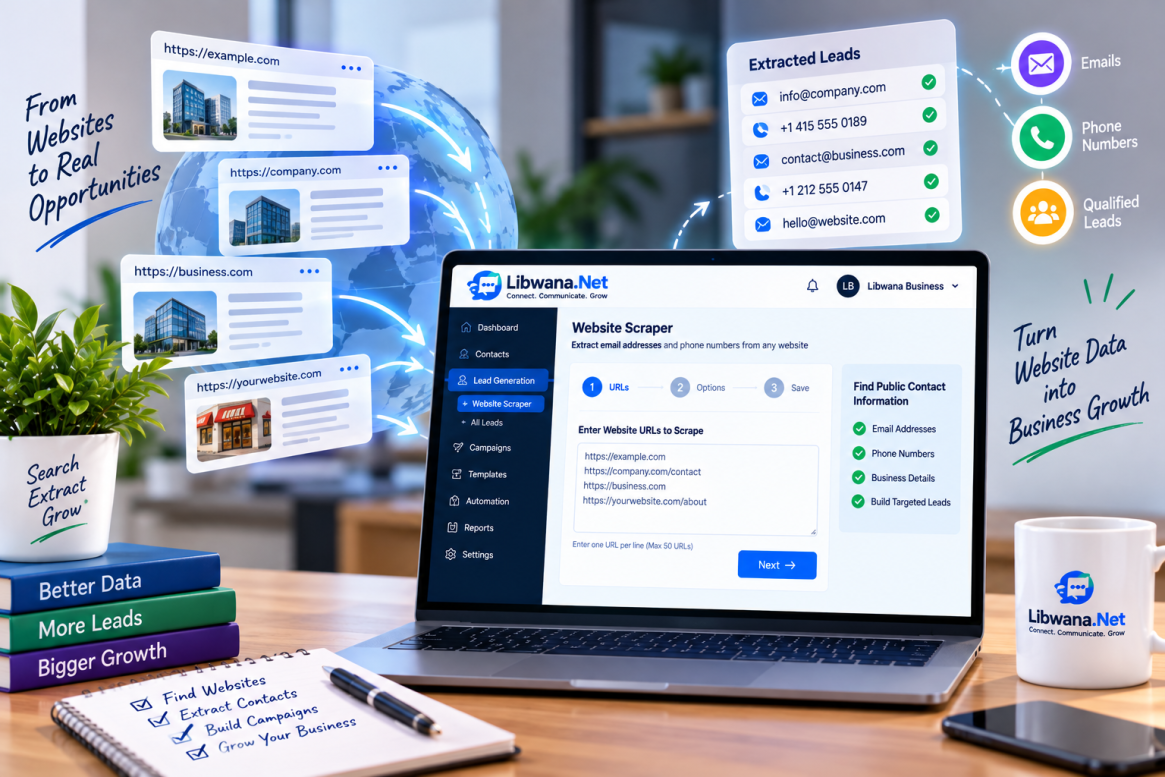
Libwana.net also provides a Website Scraper for extracting publicly available contact information from websites you specify.

Instead of searching for businesses by location and category, Website Scraper allows you to provide website URLs and search those pages for available email addresses and phone numbers.

This can be useful when you already know the businesses or websites you want to research but do not want to manually visit each site and collect its contact information.

How to Generate Leads Using Website Scraper

Navigate to:

Lead Generation → Website Scraper

This opens the New Lead Scraping Job page.

The Website Scraper workflow consists of three steps:

URLs → Options → Save

Step 1: Enter Website URLs

Under Enter Website URLs to Scrape, provide the URLs of the websites from which you want to extract contact information.

Enter one URL per line.

For example, you can provide a main website URL or a direct page such as a company's contact or about page.

The interface supports up to 50 URLs for a scraping job and indicates that URLs should include the protocol, such as https://.

Which Website Pages Work Best?

For better results, Libwana.net recommends pages where contact information is more likely to be publicly displayed.

These include:

Contact pages such as /contact or /contact-us

About pages such as /about, /about-us, or /team

Footer or legal pages such as /privacy or /imprint

Providing the direct contact or about page can improve the likelihood of finding relevant contact information.

Pages That May Not Work as Expected

The interface also notes that some websites may be difficult to process.

Examples include:

JavaScript-heavy websites, such as certain React or Vue applications.

Websites that only provide contact forms without displaying an email address.

Cloudflare-protected or CAPTCHA-protected websites.

For better results, use publicly accessible pages where the actual contact information is visible.

Once the URLs have been entered, click Next.

Step 2: Select the Contact Information You Need

The next screen lets you determine what type of contact information should be extracted.

You can choose from three options:

All Contacts

Select All Contacts when you want available email and phone information.

Email Only

Select Email Only when the generated leads must contain an email address.

This can be particularly useful when preparing contacts for an email campaign.

Phone Only

Select Phone Only when the generated leads must contain a phone number.

This is useful when your planned communication depends on phone-based contact information.

Control Duplicate Leads

Under Quality Preferences, use Skip Duplicates to control whether previously existing leads should be included.

The available choices are:

Yes – Skip existing leads

or

No – Include all

Selecting Yes helps keep the lead database cleaner when websites have already been processed previously.

After selecting the required options, click Next.

Step 3: Choose Where to Save the Leads

The final step determines how the scraped leads should be handled.

Two options are provided:

Review First

Choose Review First if you want to preview the extracted leads before importing them.

This is useful when you want to verify the available information before adding the contacts to your contact database.

Existing Group

Choose Existing Group if you want the scraped contacts to be added to one of your existing contact groups.

Select the appropriate group and proceed with the scraping process.

When the configuration is complete, click Start Scraping.

Review and Manage Website Leads

After the scraping job is completed, the generated leads can be managed from:

Lead Generation → All Leads

The My Leads page provides a centralized place to review lead information.

Depending on what was discovered, a lead may contain information such as:

Business name, Email address, Phone number, Location, Quality, and Status.

You can also filter the records according to whether they contain an email or phone number, their status, or their quality.

Import Leads into Existing or New Groups

After reviewing the results, leads can be moved into your contact management workflow.

You can import leads into an existing contact group or organize them into a new group.

For example, you could create separate groups for:

Real Estate Leads, Retail Businesses, Website Leads, or a particular campaign audience.

The groups can be managed from:

Contacts → Groups

From here, contact groups can be viewed and managed for future communication activities.

Export Generated Leads

Libwana.net also allows generated leads to be exported.

Exporting provides flexibility when the lead information needs to be used for reporting, analysis, record keeping, or other permitted external business processes.

Turn Website Leads into Campaign Audiences

Generating the leads is only the first part of the workflow.

Once suitable leads have been reviewed and organized into contact groups, those groups can be used with the communication and campaign features available in Libwana.net.

Depending on the information collected and the gateways configured on the account, contacts can be used for activities such as:

Bulk Email campaigns, Bulk SMS campaigns, and other supported messaging and campaign workflows.

For example, if the Website Scraper identifies email addresses, those contacts can be organized into an appropriate group and used for an email campaign. Similarly, contacts with phone numbers can be organized for supported SMS communication.

This provides a complete workflow within the platform:

Enter Websites → Extract Leads → Review Results → Import into Groups → Build Campaigns → Reach Your Audience

When using scraped or generated contact information for marketing, users should ensure that their collection, storage, and outreach practices comply with applicable privacy, data-protection, consent, and anti-spam laws.