

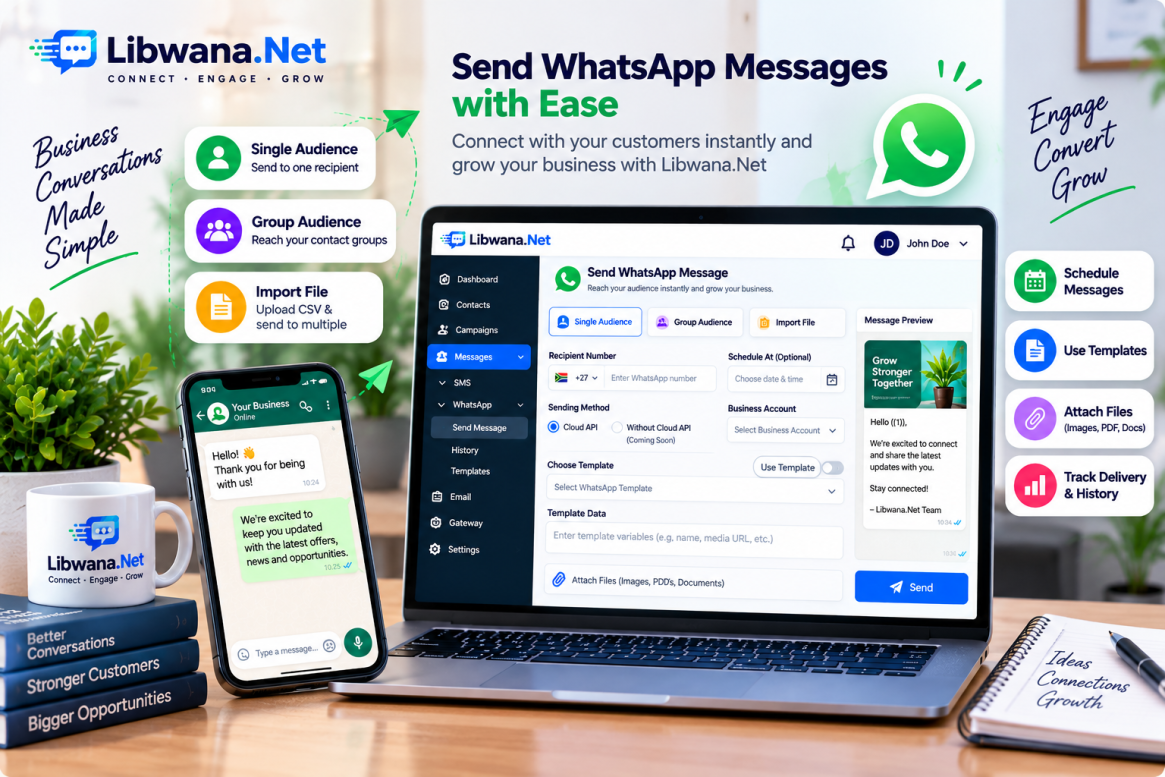
How to Send WhatsApp Messages with Libwana.net
After configuring your supported WhatsApp gateway, Libwana.net allows you to manage WhatsApp communication directly from the Messages section.
Navigate to:
Messages → WhatsApp → Send Message
The page provides three audience options:
Single audience, Group audience, and Import file.
Send a WhatsApp Message to a Single Recipient
Select Single audience and enter the recipient's WhatsApp phone number.
You can also use Schedule At to choose a future date and time for the message.
Next, select the Sending Method.
The interface currently displays:
Without Cloud API and Cloud API.
For currently supported WhatsApp communication, users should use the configured Cloud API method.
After selecting Cloud API, choose your configured Business Account from the available list.
Select a WhatsApp Template
WhatsApp Cloud API messages can use approved WhatsApp templates associated with the selected business account.
Select the required template under Choose Template.
Depending on the template, Libwana.net may display additional Cloud API Template Data fields. For example, a template containing an image header may require a Media URL (IMAGE).
The available fields depend on the structure of the selected WhatsApp template.
Complete the required template information and click Send.
Send Bulk WhatsApp Messages
For contacts already organized inside Libwana.net, select Group audience.
Choose the appropriate contact group and complete the WhatsApp sending configuration. This provides a convenient way to communicate with multiple contacts without entering every number individually.
Where Cloud API templates are required, select the appropriate business account and WhatsApp template before sending.
Send WhatsApp Messages Using a CSV File
Select Import file when you need to send messages to recipients stored in a CSV file.
Upload the recipient file using Choose File and follow the required CSV format. Where provided, the demo.csv file can be used as a reference.
After importing the recipients, complete the applicable WhatsApp gateway, template, message, and scheduling configuration before sending.
WhatsApp Message Content and Attachments
The WhatsApp message area supports message composition and provides basic formatting controls.
The interface also provides an option to attach additional files, including supported images, PDFs, and documents, where the selected WhatsApp sending method and message type support them.
A Use Template option is also available for reusable message content.
Check WhatsApp Message History
After sending messages, navigate to:
Messages → WhatsApp → History
The WhatsApp Dispatch Logs provide a centralized view of WhatsApp communication.
The History page includes information such as:
Sender, recipient, initiated time, scheduled time, sent time, processed time, and delivery status.
Messages can show statuses such as Delivered, making it easier to monitor message processing and delivery.
The page also provides filtering options for:
- Recipient number
- Delivery status
- Date
Users can search or reset these filters to locate specific communication records.
Manage WhatsApp Communication More Efficiently
With Libwana.net, businesses can manage WhatsApp messaging through a single interface—from sending a message to one customer to communicating with groups or CSV-imported recipients.
When combined with WhatsApp Cloud API, business account selection, approved templates, template media, scheduling, attachments, and detailed dispatch history, the platform provides the tools required to manage WhatsApp communication at scale.
Recent Blogs
 Mon, Sep 7, 2026 7:25 PM
How to Set Up an Email Gateway in Libwana.Net for Single & Bulk Email Sending
 Mon, Sep 7, 2026 7:31 PM
How to Set Up an SMS API Gateway and Send Bulk SMS