

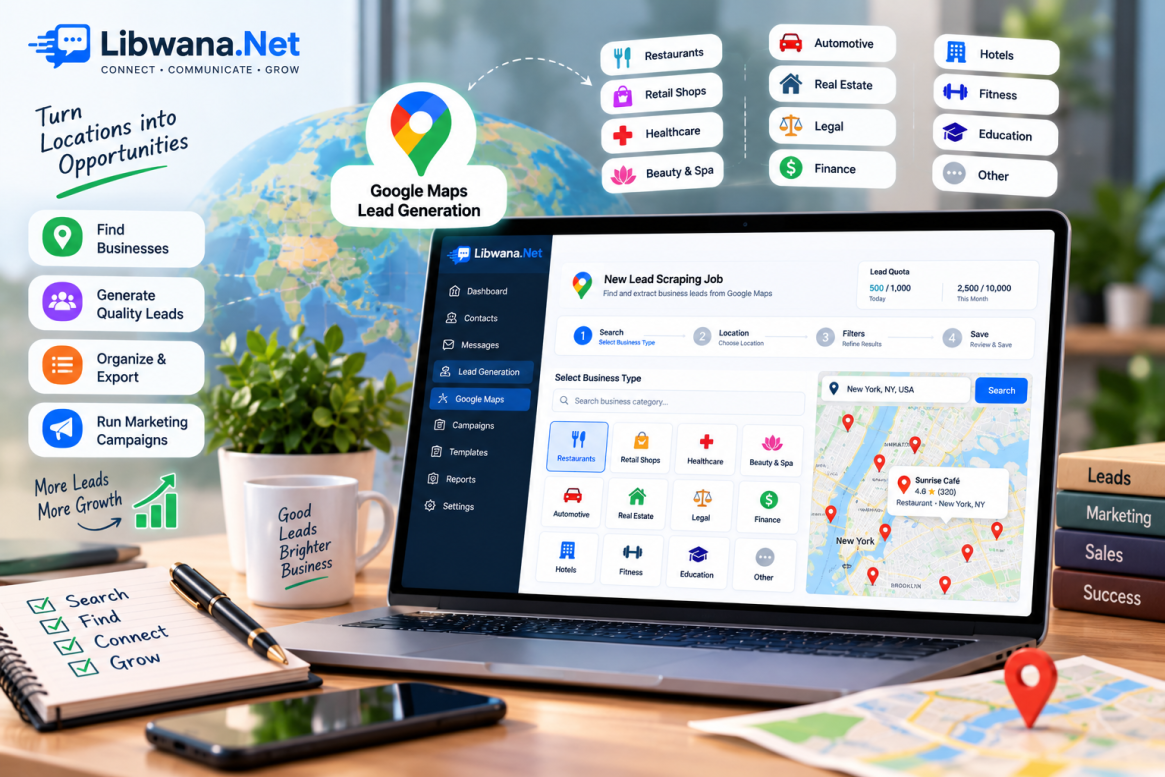
Generate Business Leads Using Google Maps on Libwana.net
Finding relevant business contacts manually can take a significant amount of time. Libwana.net simplifies this process with its Google Maps Lead Generation feature, allowing users to search for businesses by category, location, and contact availability.
The generated leads can then be reviewed, organized into contact groups, exported, and used for communication and marketing campaigns.
How to Generate Leads from Google Maps
Navigate to:
Lead Generation → Google Maps
This opens the New Lead Scraping Job page.
At the top of the page, you can also view your available lead quota, including the number of leads available for the current day and month.
The Google Maps lead generation process consists of four steps:
Search → Location → Filters → Save
Step 1: Select the Business Type
Start by selecting the type of businesses you want to find.
Libwana.net provides predefined categories including:
- Restaurants
- Retail Shops
- Healthcare
- Beauty & Spa
- Automotive
- Real Estate
- Legal
- Finance
- Hotels
- Fitness
- Education
- Other
You can select the category that best matches your target audience.
Search Using Custom Keywords
If you need a more specific search, use the custom search keywords field.
For example, you can search for:
Coffee shops
Dentists
Web developers
Real estate agents
Property management companies
Multiple keywords can also be entered by separating them with commas.
Once the business type or keywords are selected, click Next.
Step 2: Select the Target Location
The next step determines where Libwana.net should search for businesses.
Select or enter the required Country and then provide the City / Region.
For example:
Country: United States of America
City / Region: Texas
The country field provides a searchable list of supported countries, making it possible to generate business leads across different markets and geographic locations.
After entering the target location, click Next.
Step 3: Refine the Lead Search
Libwana.net allows you to control the type of contact information you want from the generated leads.
Three options are available:
All Contacts – Find leads containing available email and/or phone information.
Email Only – Return leads that have an email address.
Phone Only – Return leads that have a phone number.
This is useful when preparing leads for a specific communication channel. For example, choose Email Only when building an email marketing list or Phone Only when the contact list will primarily be used for phone-based communication.
Set the Maximum Number of Results
Under Additional Filters, select the maximum number of leads that should be generated.
The displayed options include:
20 leads, 40 leads, or 60 leads.
The number of leads you can generate is also subject to the available quota on your account.
Skip Duplicate Leads
The Skip Duplicates option helps prevent previously generated leads from being added again.
You can choose:
Yes – Skip existing leads
or
No – Include all
Selecting Yes is useful when you regularly perform similar searches and want to reduce duplicate records.
After configuring the filters, click Next.
Step 4: Choose Where to Save the Leads
Before starting the scraping process, choose how the generated leads should be handled.
Libwana.net provides two options:
Review First
Select Review First when you want to preview the generated leads before importing them into your contacts.
This gives you an opportunity to review the available lead information before deciding how it should be organized.
Existing Group
Select Existing Group when you want the generated leads to be added directly to one of your existing contact groups.
Choose the required group from the Select Group dropdown.
This makes it easier to keep leads organized according to your campaigns, markets, industries, or other contact categories.
Once everything is configured, click Start Scraping.
Manage Generated Leads
Generated leads can be accessed from:
Lead Generation → All Leads
The My Leads section provides an overview of the leads collected through the platform.
Depending on the information available for a lead, the table can display details such as:
Business, Email, Phone, Location, Quality, and Status.
You can also filter the lead list using options such as:
Has Email, Has Phone, Status, and Quality.
These filters make it easier to identify the leads that are most suitable for a particular campaign.
Import Leads into Contact Groups
After reviewing generated leads, they can be imported into your contact management system.
Leads can be added to an existing contact group, or you can organize them into a new group according to your requirements.
Contact groups can then be managed from:
Contacts → Groups
Organizing generated leads into groups is particularly useful when creating different audience segments, such as leads from a specific country, location, business category, or campaign.
Export Your Leads
Generated leads can also be exported when you need to use or manage the data outside Libwana.net.
This provides additional flexibility for maintaining lead records, internal analysis, reporting, or other permitted business workflows.
Use Generated Leads in Campaigns
Lead Generation is integrated with the broader communication workflow of Libwana.net.
Once generated leads have been reviewed and added to your contact groups, those contacts can be used as audiences for supported campaigns and messaging features.
For example, depending on the contact information available and your configured gateways, you can use the contacts for:
SMS campaigns, Email campaigns, and other supported messaging or campaign workflows.
This creates a connected process:
Find Leads → Review Leads → Organize Contacts → Create Campaign → Communicate with Your Audience
Always make sure your outreach complies with applicable privacy, consent, anti-spam, and marketing communication requirements.
Recent Blogs
 Mon, Sep 7, 2026 7:25 PM
How to Set Up an Email Gateway in Libwana.Net for Single & Bulk Email Sending
 Mon, Sep 7, 2026 7:31 PM
How to Set Up an SMS API Gateway and Send Bulk SMS