

How to Send Single and Bulk Emails with Libwana.net
After configuring an Email Gateway in Libwana.net, you can send individual emails, bulk emails to contact groups, or bulk emails by importing recipients through a CSV file.
To get started, log in to your account and navigate to:
Messages → Email → Send Email
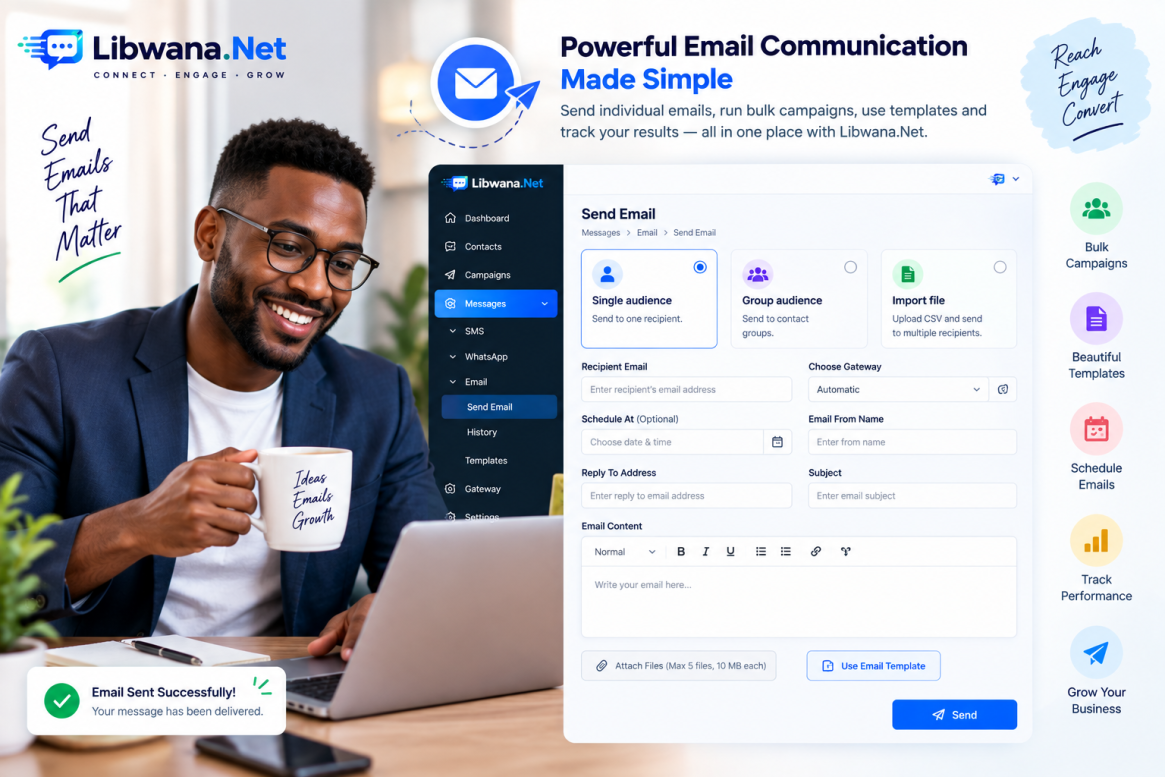
The Send Email page provides three audience options:
- Single audience – send an email to one recipient.
- Group audience – send bulk emails to an existing contact group.
- Import file – upload a CSV file and send emails to multiple recipients.
Send an Email to a Single Recipient
Select Single audience and enter the recipient's email address.
Under Choose Gateway, select the Email Gateway that should process the message. Depending on the gateways available to your account, the platform may provide options such as Random Rotation, Automatic, Custom Gateway, or a configured SMTP gateway.
You can then optionally select Schedule At if the email should be delivered later instead of immediately.
Complete the Sender Information, including:
Email From Name – the name recipients will see as the sender.
Reply To Address – the email address where replies should be received.
Next, enter the Subject and compose your email using the built-in rich-text editor. The editor provides formatting tools for creating professional email content.
You can also attach files where required. Libwana.net currently displays support for up to 5 files, with a maximum size of 10 MB each.
Once everything is ready, click Send.
Send Bulk Emails to a Contact Group
For sending the same email to multiple saved contacts, select Group audience.
Choose the required contact group from Choose Group, select your Email Gateway, configure the schedule and sender information if required, and prepare your subject and email content.
When sending to contacts from a group, Libwana.net supports personalization using variables such as:
{{first_name}}
This allows the same bulk email to contain recipient-specific information.
The message editor also shows support for text-spinning syntax and an unsubscribe placeholder:
{{unsubscribe_link}}
This can be used to include an opt-out/unsubscribe link for recipients where applicable.
Send Bulk Emails by Importing a CSV File
If your recipients are not already stored in a contact group, select Import file.
Upload the required CSV file using Choose File. A demo.csv option is available on the page to help users understand the expected CSV structure.
For larger recipient lists, the platform also recommends considering contact groups instead of repeatedly uploading large CSV files.
After importing the file, select the Email Gateway, configure the remaining sender and message details, and click Send.
Use Email Templates
Instead of writing every email from scratch, click Use Email Template.
Libwana.net provides access to pre-built email content through options such as Bee Pro Template and CK Text Editor. Select the required template and use it as the starting point for your email.
This can make recurring campaigns faster and help maintain consistent email formatting.
Check Email History
After emails are sent or scheduled, open:
Messages → Email → History
The History section can be used to review previous email communication and monitor your email activity.
With single-recipient sending, contact groups, CSV imports, scheduling, templates, attachments, personalization, and history in one workflow, Libwana.net provides a convenient way to manage both individual and bulk email communication.
Recent Blogs
 Mon, Sep 7, 2026 7:25 PM
How to Set Up an Email Gateway in Libwana.Net for Single & Bulk Email Sending
 Mon, Sep 7, 2026 7:31 PM
How to Set Up an SMS API Gateway and Send Bulk SMS